
How to Automate Google Review Requests Without Breaking Google’s Rules
Documented guide. Rules come from Google’s official policy and help pages and the Federal Trade Commission, checked on October 27, 2026. This is general information, not legal advice. See how we test.
Most happy customers mean to leave a review and then forget. Sending a short request automatically after every job fixes that, and it’s easy to set up. But the wrong setup can get your reviews removed or put you on the wrong side of federal rules. This guide covers what’s allowed first, then the setup, then message templates.
The rules in one table
| Practice | Google’s policy | FTC rule (effective October 21, 2024) |
|---|---|---|
| Asking every customer for a review | Allowed; Google tells businesses how to share a review link | Allowed |
| Offering a discount, gift or payment for a review | Not allowed: treated as fake engagement and removed | Not allowed if the reward depends on the review being positive (or negative) |
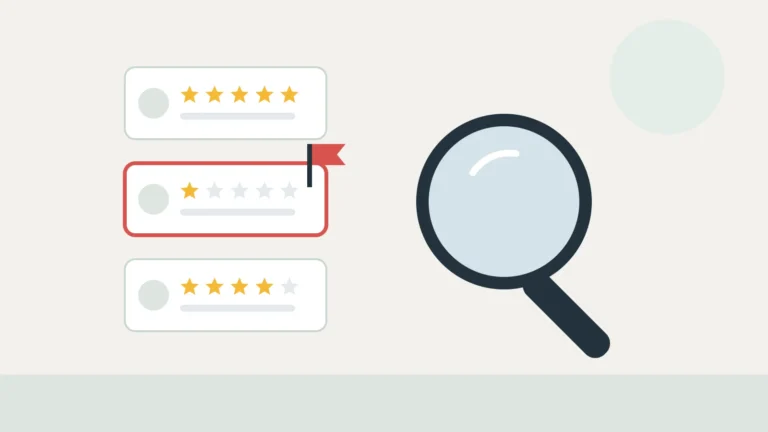
| Asking only happy customers (“review gating”) | Not allowed: businesses may not “selectively solicit positive reviews” | Not specifically banned by the rule, but the FTC says it could violate the FTC Act |
| Discouraging or blocking negative reviews | Not allowed | Threats or intimidation to prevent or remove reviews are prohibited |
| Asking customers to mention specific things | Not allowed | Not addressed directly |
| Staff reviewing the business, or review quotas for staff | Not allowed (conflict of interest; staff may not be required to solicit a set number) | Fake or insider reviews are covered by the rule |
Sources: Google Maps content policy, Google Business Profile tips, and the FTC’s questions and answers on the rule. The FTC notes that courts can impose civil penalties for knowing violations.
The simple rule of thumb: ask everyone, offer nothing in return, and don’t tell them what to write.
Step 1: Get your review link or QR code
Google’s help page on creating a review link or QR code says to open your Business Profile on a computer, choose Read Reviews, then the Get more reviews share icon. From there you can copy the link or save the QR code image. QR codes can currently be created only in a desktop browser.
Google suggests sharing the link on receipts, in thank-you emails, at the end of chats and on a printed QR code in your shop or van. Customers need to be signed in to a Google Account to post.
Menu labels change from time to time. If you can’t find these options, search Google’s Business Profile help for “request reviews”.
For more on the link and QR code, including where to put them and what to do if reviews don’t appear, see our Google review link guide.
Step 2: Pick the trigger
The trigger is the event that starts the request. Good choices for service businesses:
- Job marked complete in your scheduling or field-service app. The most common choice.
- Invoice paid. Useful if jobs are often marked complete before the work is signed off.
- Appointment checked out for salons, clinics and other appointment businesses.
Whatever you pick, it must fire for every customer. Don’t add a “were you happy?” step that sends the review link only to people who say yes; that’s the selective solicitation Google prohibits.
Step 3: Build the automation
Option A: your software’s built-in feature. Many scheduling and field-service apps can send review requests themselves. For example, Housecall Pro lists review management on its Basic plan (see our Jobber vs Housecall Pro comparison). Check whether your current tool already does this before adding anything new. All-in-one messaging platforms such as Podium also send review requests, at a much higher monthly price; see our Podium pricing guide.
Option B: an automation tool. If your software can’t do it, a tool such as Zapier can connect the trigger to a text or email:
- Trigger: job completed (or invoice paid) in your app.
- Delay: wait a few hours, so the request arrives after the crew has left but while the visit is fresh.
- Action: send a text or email with your review link.
In Zapier, the delay step is free and the send step uses one task per customer; our Zapier pricing guide shows how that adds up. If you send by text, US carriers require your business number to be registered for texting first. Our missed call text back guide explains that 10DLC registration and its fees.
Good practice either way:
- Send one request and, at most, one reminder a few days later. Then stop.
- Skip repeat customers you asked recently, so regulars don’t get a request after every visit.
- Send from a number or address customers recognize.
Message templates
Keep it short, personal and neutral. Don’t promise anything in return and don’t suggest what to write. Adapt these:
Text, a few hours after the job: “Hi [First name], thanks for choosing [Business Name] today. If you have a minute, we’d appreciate an honest review: [review link]. Thank you!”
Email: Subject: “How did we do?” Body: “Hi [First name], thanks for having [Technician name] out on [day]. Your feedback helps other customers and helps us improve. If you’re willing, you can leave a review on Google here: [review link]. If something wasn’t right, just reply to this email and we’ll make it right either way.”
Reminder, 3–5 days later (once only): “Hi [First name], just a quick reminder in case you’d like to share an honest review of your visit: [review link]. No worries if not, and thanks again.”
Inviting customers to reply with problems is fine, as long as everyone still gets the review link. What’s not allowed is sending the link only to the customers who say they’re happy.
Mistakes that get reviews removed
- “Leave a 5-star review and get 10% off.” Any incentive for a review breaks Google’s policy, and tying it to a positive review breaks the FTC rule too.
- Gating with a satisfaction survey. Sending the Google link only to customers who rate you highly is selective solicitation.
- Review drives among staff, friends or family. Google treats employment and close relationships as conflicts of interest.
- Review quotas for technicians. Google says businesses may not require staff to solicit a set number of reviews.
- Asking for specific wording, such as “please mention our fast service”.
- Arguing with negative reviews. Reply politely to every review, positive or negative, as Google recommends. The FTC rule prohibits threats or false accusations against reviewers. See our guide on how to respond to negative reviews.
For where and when to ask by type of business, and how many reviews it takes to move your rating, see how to get more Google reviews.
Next steps
- Copy your review link and QR code from your Business Profile.
- Check whether your scheduling or field-service app already sends review requests.
- If not, set up the trigger, delay and message in an automation tool, sending to every customer.
- Send the first few to yourself or a colleague to check the link and wording.
- Reply to new reviews each week.